

ClassLens now uses Gemini 3.8 Flash to prepare rubric-based grades and feedback for Google Classroom assignments. Choose an assignment, review or approve the rubric, and check every result before releasing grades to students.
You still decide what counts and control what students see. If ClassLens gets something wrong, edit it.
How to grade an assignment with ClassLens
- Choose the assignment. ClassLens loads your courses and assignments from Google Classroom, so you do not download a folder of student files. Assignments created through ClassLens can return draft grades to Classroom; other assignments use Grade & Export.
- Check the rubric. If the assignment already has a Classroom rubric, ClassLens uses it. Otherwise, you can review, edit, and approve a rubric before grading begins.
- Pick Standard or Advanced. Both use Gemini 3.8 Flash. The difference is reasoning effort and credit use, explained below.
- Confirm the job. ClassLens shows the number of selected submissions and your grading settings before you start.
- Review the drafts. Classroom-return modes write draft grades. Grade & Review also opens the Batch Review Dashboard, where you can read the work, edit the score or comment, and release only the grades you checked. Export mode writes the results to your Google Sheet.
Standard and Advanced use the same model differently
Standard is the default for everyday grading. It runs Gemini 3.8 Flash with LOW reasoning effort and uses one submission credit for each graded submission. Advanced leaves the thinking setting at Google's current provider default, MEDIUM, and uses three credits per submission.
Advanced is there for more complex or higher-stakes work where you want the model to spend more effort on the rubric and submission. The setting difference does not prove that Advanced will produce a better grade on every assignment. During the free month you can choose either tier by assignment and compare the drafts before you release them.
A grading example you can inspect
The public ClassLens demo uses a fictional eighth-grade science class. Students answer this question: Does evening screen time cause teenagers to get less sleep? They must make a claim, cite data, explain their reasoning, and address another possible explanation.
The teacher's 20-point rubric has four criteria:
- Claim: 4 points
- Evidence: 6 points
- Reasoning: 6 points
- Alternative explanations: 4 points
In the example below, the student cites the sleep averages, the correlation, and the sample size. She also explains why an observational study cannot prove causation and names stress, homework, and reverse causation as alternatives. ClassLens drafts a score of 20 out of 20 and a comment that points to those parts of the response.
The generated comment reads:
Great job, Priya! You've clearly stated your claim that the Hartwell data shows an association but cannot prove causation. You also did an excellent job citing specific evidence from the study, including the sleep averages (6.1 vs. 8.0 hours), the correlation coefficient (r = 0.62), and the sample size (1,200). Your reasoning effectively explains that correlation does not equal causation and correctly identifies the observational nature of the study as a limitation. You also brought up excellent alternative explanations like reverse causation and stress, which strengthens your analysis. Keep up the fantastic work connecting evidence to your claims!
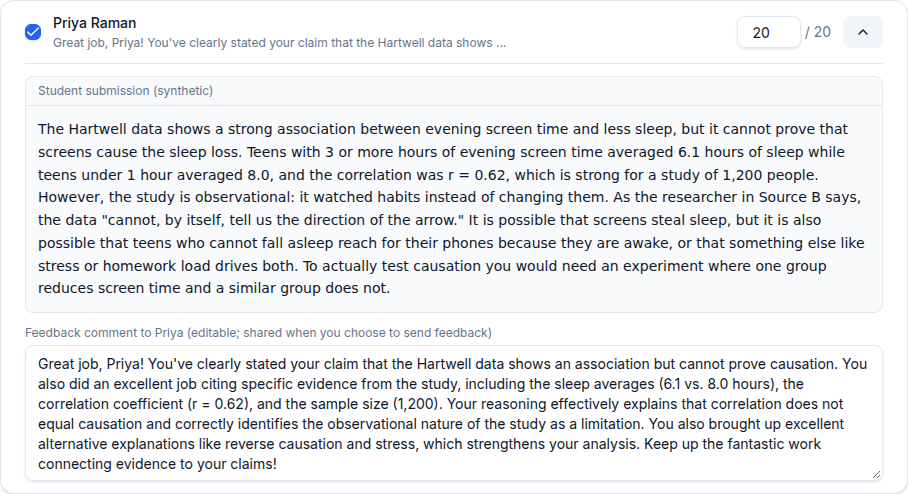
The teacher checks whether the student's work justifies the 20 out of 20, whether the comment is specific enough to help, and whether the tone fits the student. You can change the score or rewrite the comment before the student sees the result.
The same grading run can also show a class-wide pattern. In this synthetic class, 15 of 26 students treated correlation as proof of causation. That is more useful for tomorrow's lesson than 26 isolated comments. You can inspect the full sample report and review screen without signing in.
What changed with Gemini 3.8 Flash
In its September 2 announcement, Google calls Gemini 3.8 Flash its most intelligent Flash model. Google's model documentation lists support for text, images, audio, video, and PDFs. ClassLens now uses it for both grading tiers through Vertex AI while keeping the same Classroom workflow.
This is a ClassLens model update, not a new grading feature inside Classroom. Our guide to what Gemini in Classroom does covers Google's separate feedback feature.
What to check before releasing grades
A model launch is not a grading study. Results change with the subject, assignment, rubric, and submission format, so we cannot promise that every grade improved. ClassLens keeps testing the grading system and writes every Classroom-return result as a draft for the teacher to review.
Try the workflow without risking a live grade
Start with the interactive synthetic demo. It does not use submission credits or change anything in Google Classroom. When you are ready to use your own class, begin with a small assignment and check the submission count before starting. A grading run uses credits, and a Classroom-return run can replace draft grades already saved for that assignment.
Every new account receives 30 days of full-access grading with up to 5,000 submission credits and no credit card required. The clock starts with the first real grading run. Standard uses one credit per graded submission and Advanced uses three. After the free month, the account continues on the Free plan with 100 submission credits per month.
Connect Google Classroom when you are ready. No grade reaches a student until you release it.
FAQ
How does ClassLens grade a Google Classroom assignment?
Choose an assignment, check or approve the rubric, select Standard or Advanced, and start the grading job. Classroom-return modes save each score as a draft grade. In Grade & Review, any generated feedback is held in the Batch Review Dashboard for you to review and edit before release. Export mode writes the scores and feedback to a Google Sheet.
What is the difference between Standard and Advanced?
Both use Gemini 3.8 Flash. Standard uses LOW reasoning effort and one credit per graded submission. Advanced uses Google's current provider default, MEDIUM, and three credits per submission. Advanced is intended for more complex or higher-stakes work, but the configuration does not guarantee a better grade on every assignment.
Can I try ClassLens without changing grades in Google Classroom?
Yes. The public demo does not connect to Classroom, use submission credits, or change grades. When you use your own class, a real grading run uses credits, and Classroom-return mode can replace draft grades already saved for that assignment. Start with a small assignment and check the submission count before you begin.
What is included in the ClassLens free month?
New accounts receive 30 days of full-access grading with up to 5,000 submission credits and no credit card required. The clock starts with the first real grading run. Standard uses one credit per graded submission and Advanced uses three. Afterward, the account continues on the Free plan with 100 submission credits per month.